

Teacher Guide
Managing Your Calendar
Keeping your calendar up to date helps students book the right time and avoids scheduling conflicts.
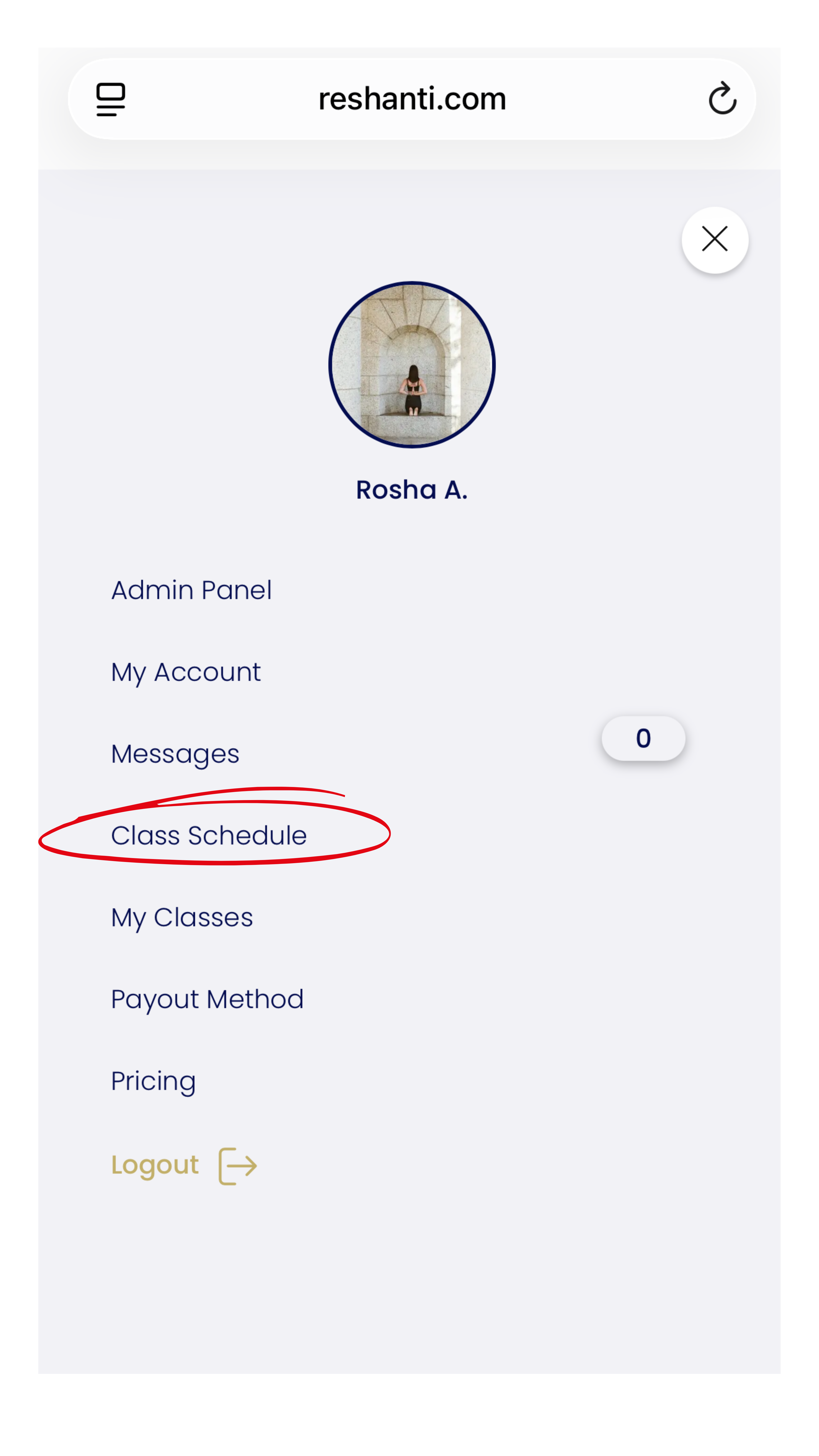
To access your calendar, go to your profile and then select Class Schedule from the side menu.
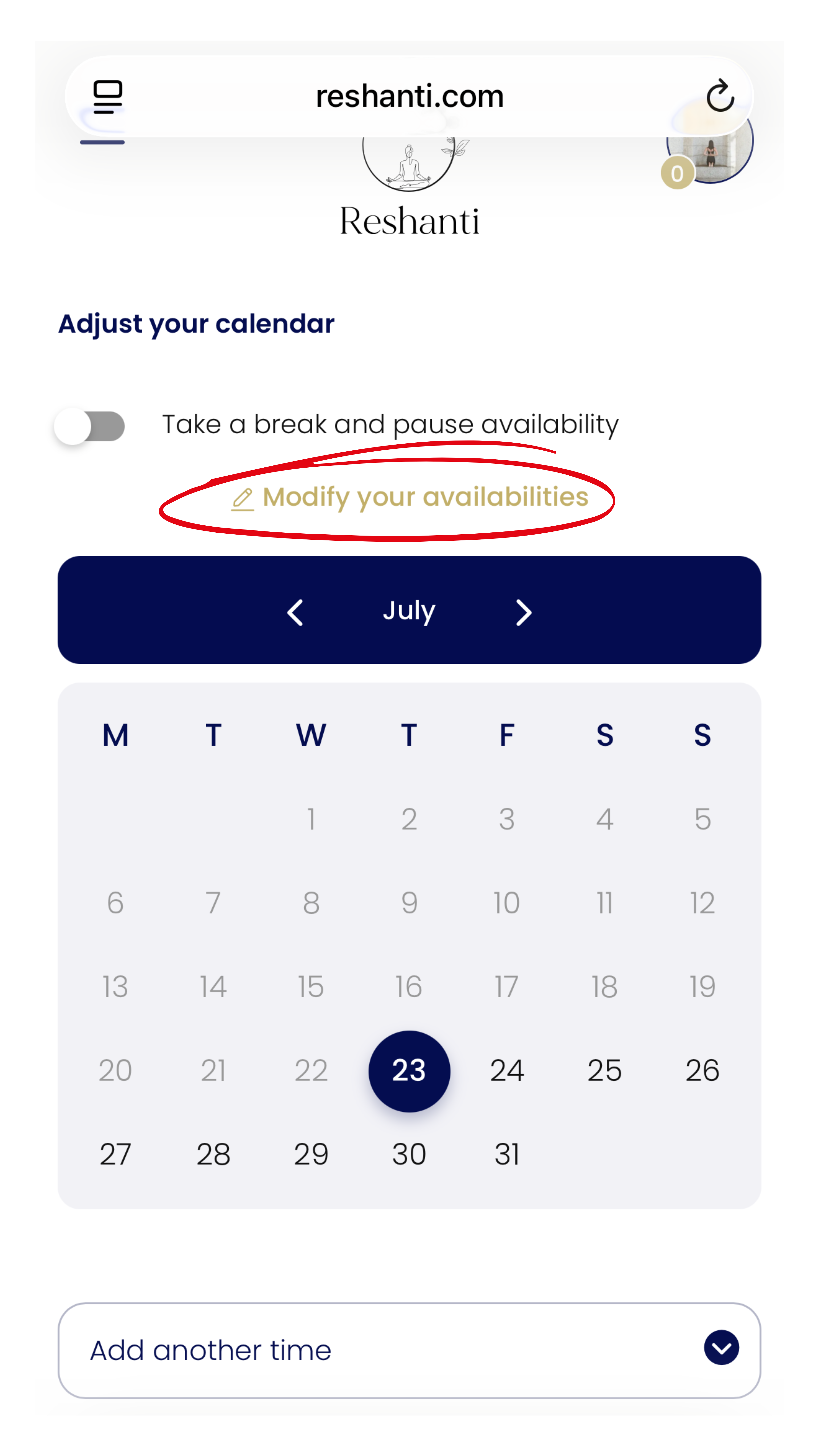
At the top of the calendar, click Modify your availabilities. This is where you manage your regular teaching schedule.
1. Check your time zone
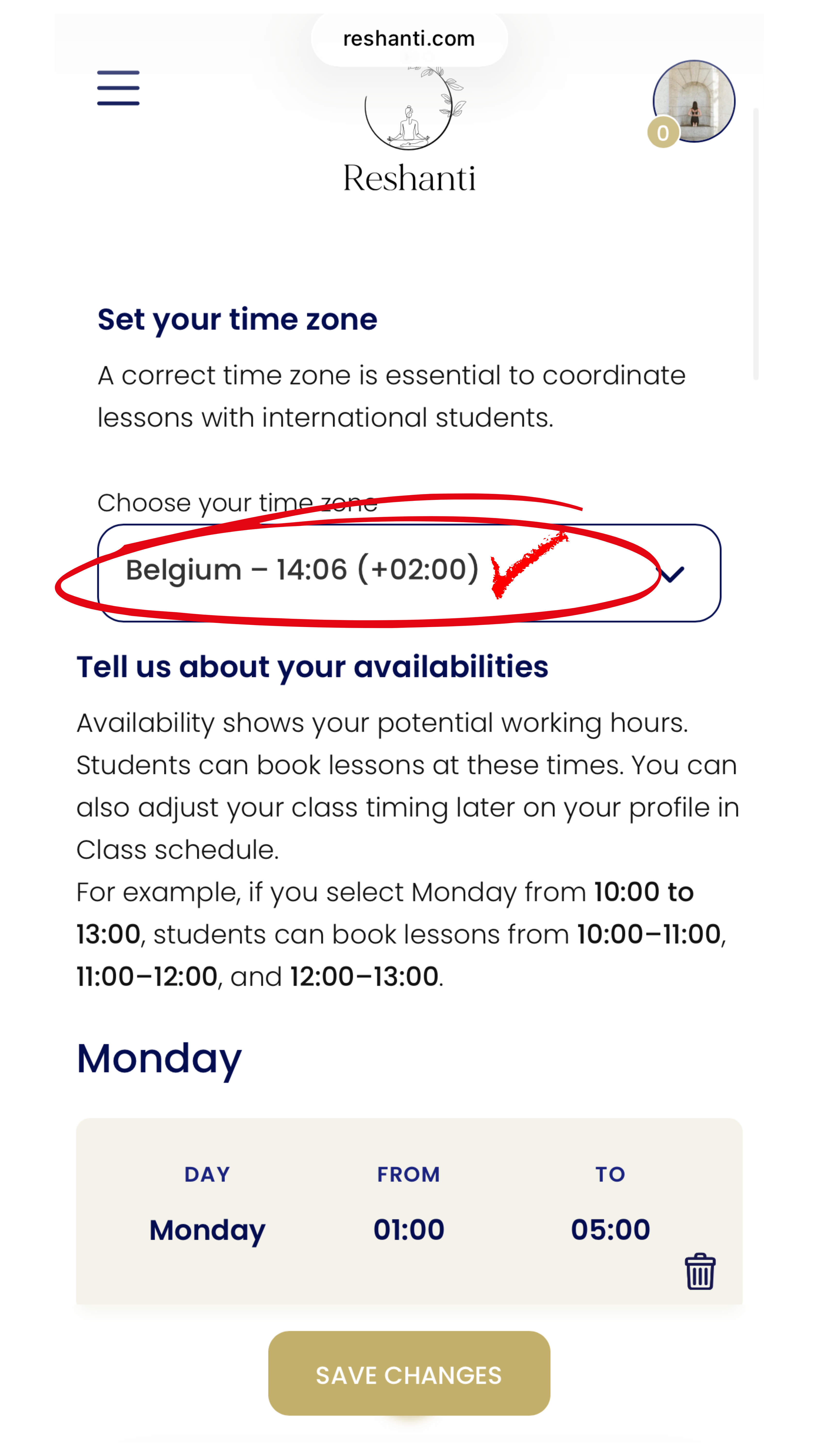
Before setting your availability, make sure your time zone matches the place where you currently live.
Students will automatically see your availability in their own time zone, so you don’t need to calculate time differences.
2. Set your regular availability
Choose the days and times you’re usually available to teach.
For example, if you select Monday from 10:00 to 13:00, students can book these one-hour time slots:
• 10:00–11:00
• 11:00–12:00
• 12:00–13:00
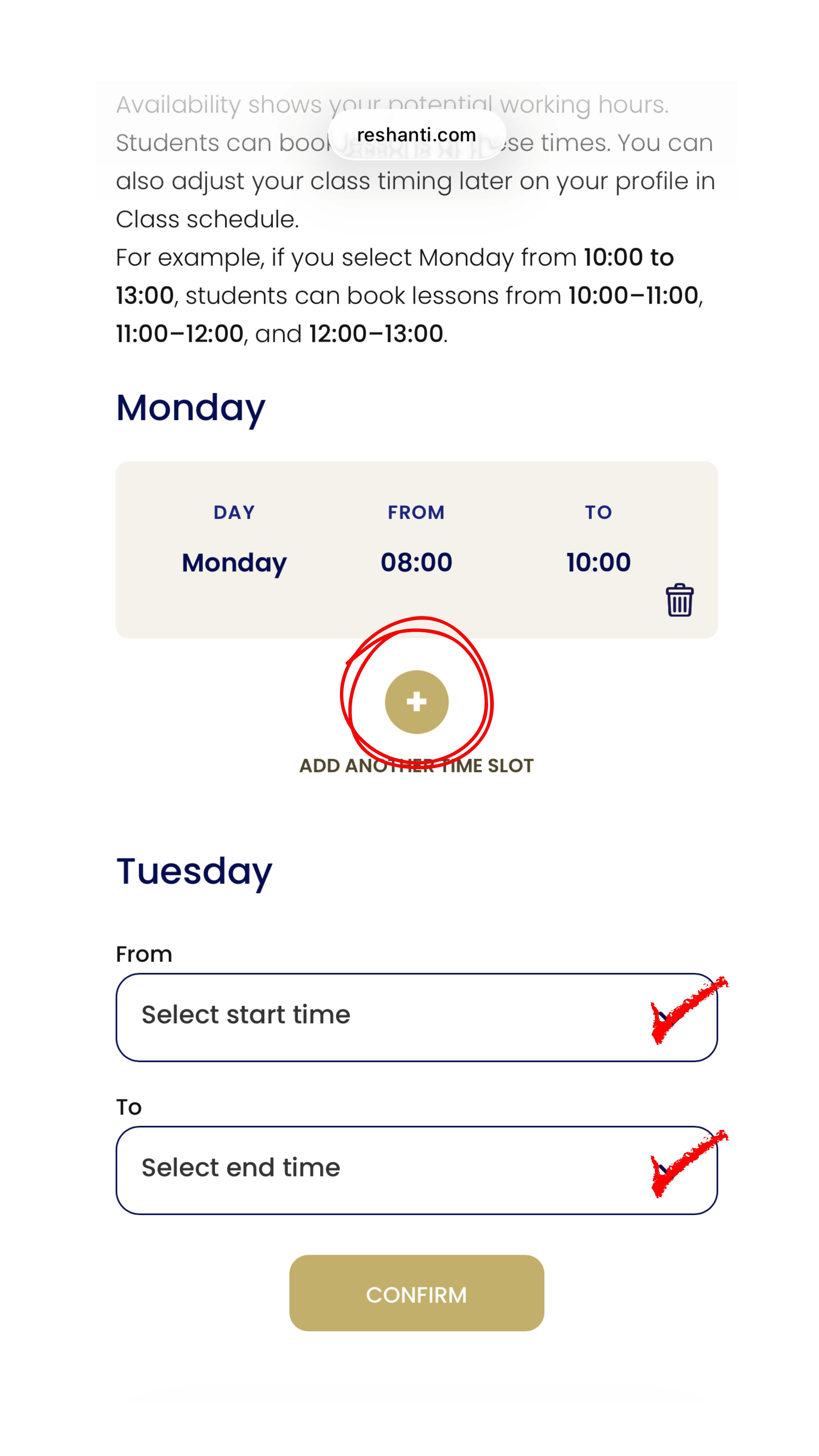
If you’re available at more than one time on the same day, click the + button to add another time slot.
For example, if you’re available on Mondays from 08:00–10:00 and 16:00–17:00, first add 08:00–10:00, then click + and add 16:00–17:00.
When you’re finished, click Save Changes.
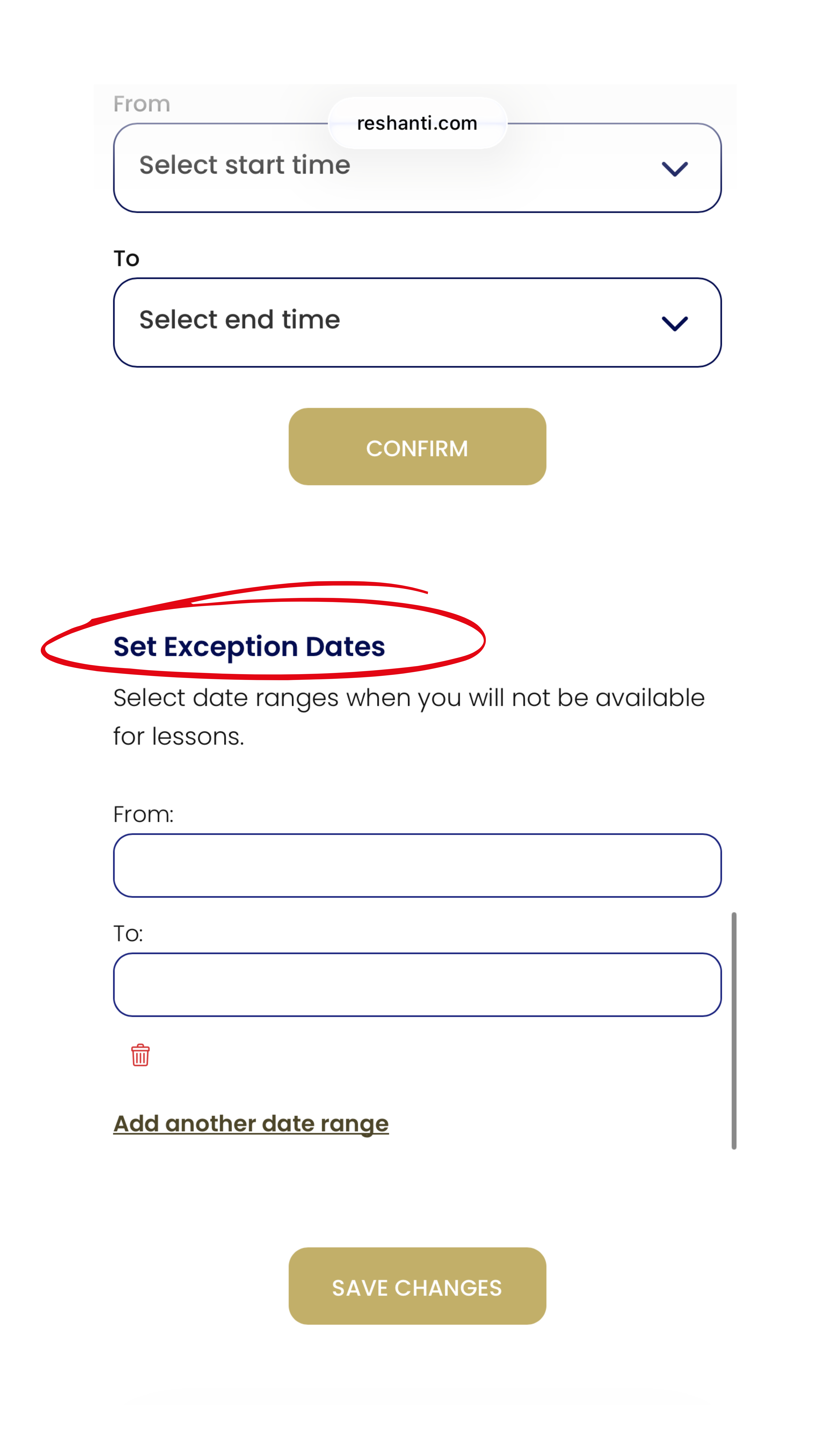
3. Set exception dates
At the bottom of the page, you’ll find Set exception dates.
If you’re going on holiday or know you’ll be unavailable during a specific period, select those dates. Students won’t be able to book classes during that time.
When you’re finished, click Save Changes.
Making changes to a specific date
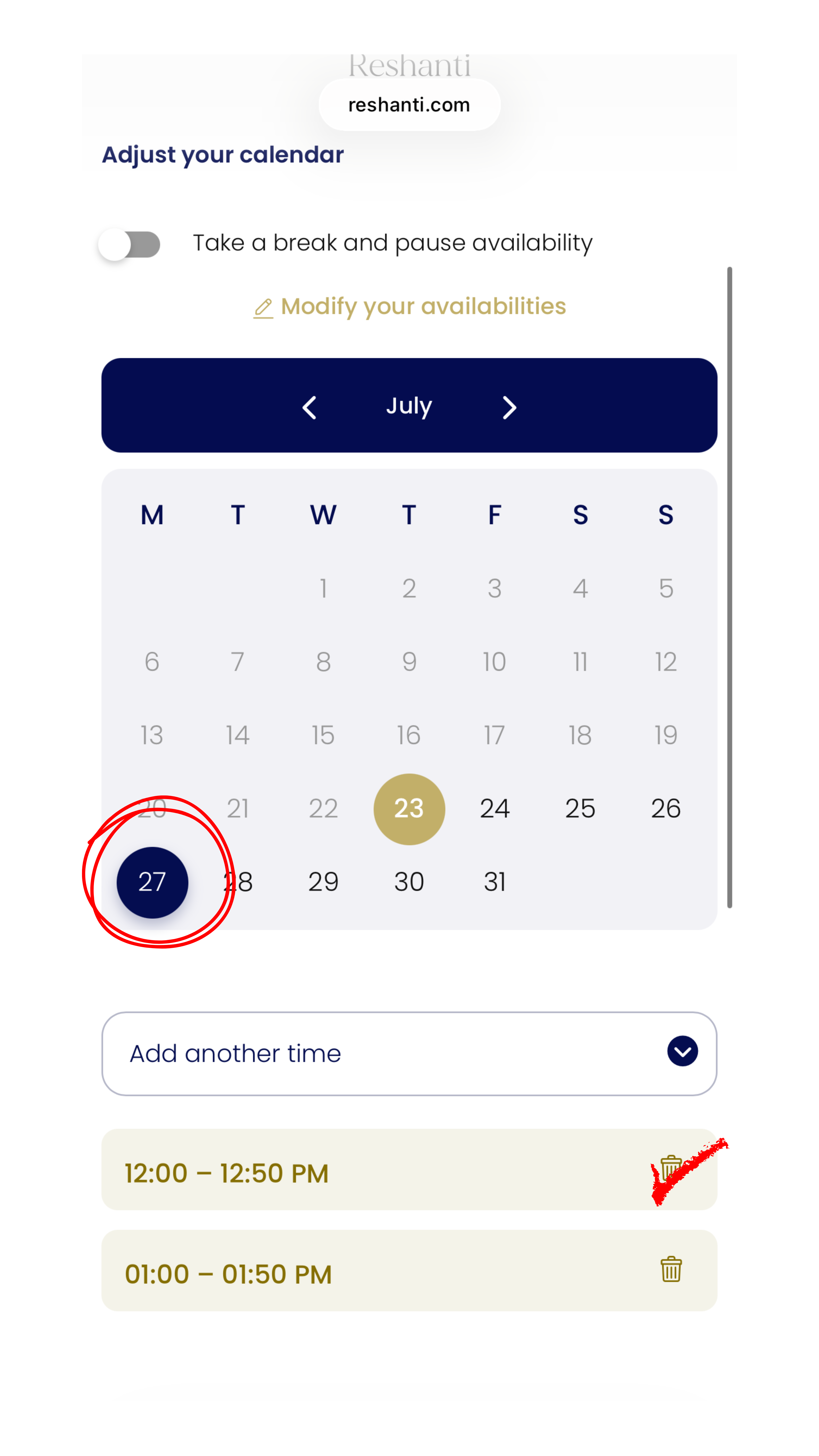
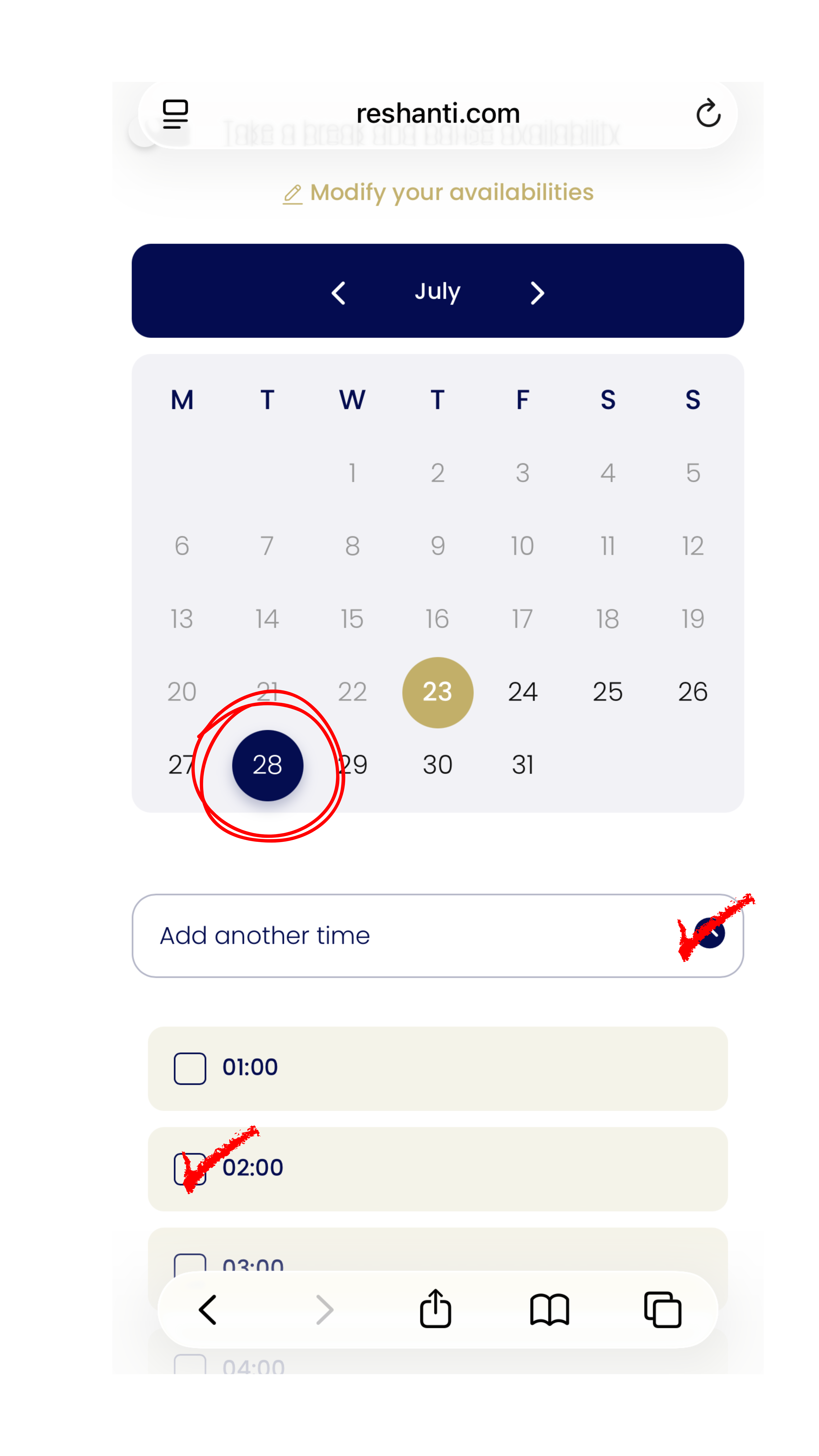
To change your schedule for just one day, you don’t need to edit your regular availability.
Simply edit that date directly on the calendar.
For example:
• If you’re usually available every Monday at 12:00 PM, but next Monday you’re busy, simply remove that time slot from the calendar.
• If you’re usually unavailable on Tuesdays, but next Tuesday at 2:00 AM you’re free, simply add that one time slot to the calendar.
Remember:
Use Modify your availabilities to manage your regular weekly schedule.
Use the calendar itself to make one-time changes for specific dates.
Taking a break
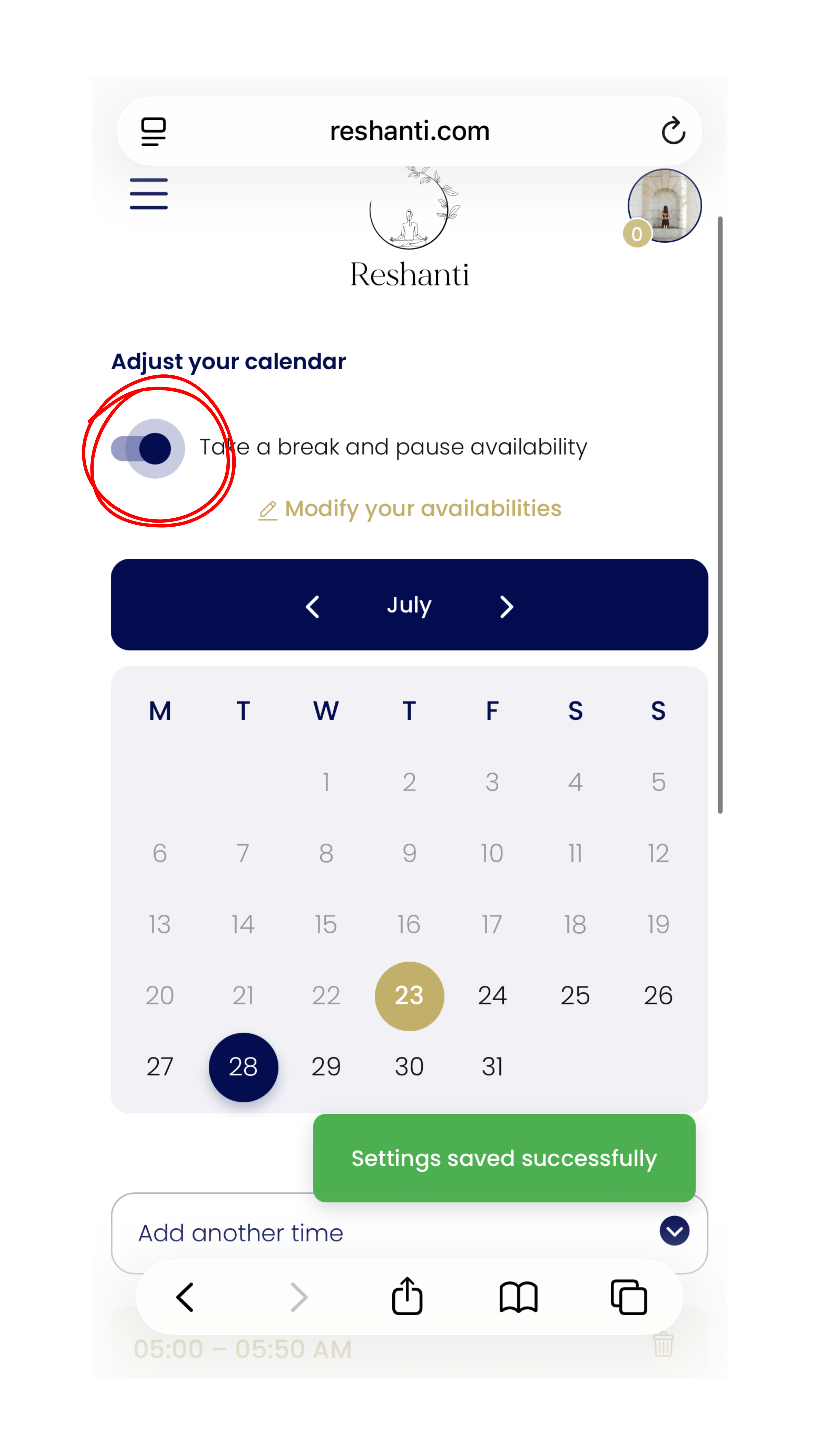
At the top of the calendar, you’ll see Take a break and pause availability.
Turn this on if you want to temporarily stop accepting new bookings.
Students won’t be able to book new classes while your availability is paused.
Please note that this doesn’t cancel existing bookings. If you already have scheduled classes, you’ll need to cancel them yourself and let your students know through the chat.
Good to know
. Booking classes in different time zones
Your calendar always shows times in your own time zone, while students automatically see them in their local time zone.
If you and a student agree on a different class time through the chat, the easiest approach is to update your availability and ask the student to book directly from your calendar. This avoids time zone confusion and ensures the correct class time is booked.
. Booking notice
At the moment, classes must be booked at least 24 hours in advance.
This means students can’t book a class for later today or within the next 24 hours, even if you’ve already agreed on a time in the chat.(You also won’t be able to add new availability for the same day or for any time slot that starts within the next 24 hours.)
We’re hoping to bring this feature back in the future.